How to Use Stickies
Learn how to use stickers in iMessage and import from WeChat
Using Stickers in iMessage
Download a Collection
Open Stickies, browse collections, and tap download.
Send in iMessage
In Messages, tap the Stickies icon to open your stickers. Tap to send, drag onto a message, or peel and place.
Sharing Stickers in iMessage
You can share a link to any sticker collection directly from the iMessage extension — great for recommending stickers to friends.
Open the Stickies Extension
In iMessage, tap the Stickies icon to open your sticker collections.
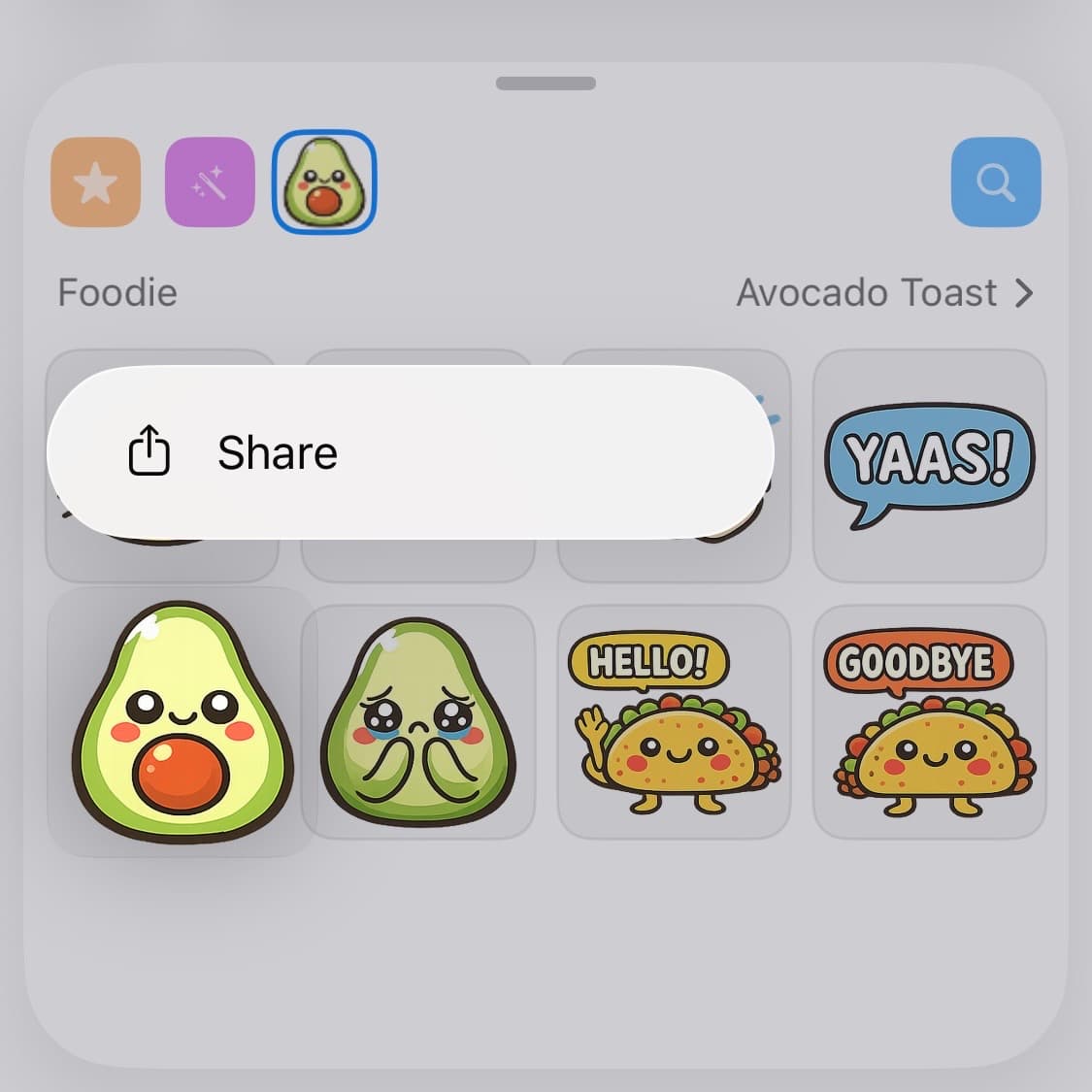
Long-press a Sticker
Press and hold any sticker to reveal a context menu with sharing options.
Tap "Share" to Send a Link
Tap the Share option to generate a link to that sticker's collection. Send it in the conversation so your friend can download the same pack.
Importing Stickers via WeChat
Follow the Official Account
Open WeChat and search for Stickies搬运号

Scan to follow
Link Your Account
Send any text message in the chat. You'll receive a link — tap it to open Stickies and confirm the connection.
Send Stickers
Send any sticker (static or animated) to the official account. They'll be synced to your Stickies library automatically.
Use in iMessage
Open Stickies to find your imported stickers, ready to use in iMessage.
Import from LINE / Kakao
Copy the pack URL
Open the sticker pack in the LINE or Kakao app and copy the share link.
Open Stickies
In the app, go to Settings → Connected Apps and tap Import — or share the URL directly to Stickies.
Confirm import
Stickies shows the pack preview. Tap Import to add it to your library.
Need Help?
Having trouble linking or importing? Send any message to the WeChat official account for guidance, or email support@stickies.store